Atmospheric openings
Build a calm landscape or establishing shot from a written idea.
Open the creation workspaceActual creation examples
Give your character a moment of motion and emotion. Start with text or an image, then explore performance, camera movement and visual styles with Kling or MiniMax H3.
Choose a model and settings before submitting; examples never auto-generate.
What would you like to create?
Find your starting point
Choose a useful direction, then adapt the example to your own brief.
Build a calm landscape or establishing shot from a written idea.
Open the creation workspaceExplore lighting and camera mood before producing a full campaign.
Open the creation workspaceTest one scene and one main action as a short moving reference.
Open the creation workspaceThese examples were generated through this site’s models or effects. Reference people and products are AI-created. Each is one result, not a fixed-output promise; prompts show the exact original wording. A button restores settings for review and never submits or spends credits automatically.
Actual creation examples
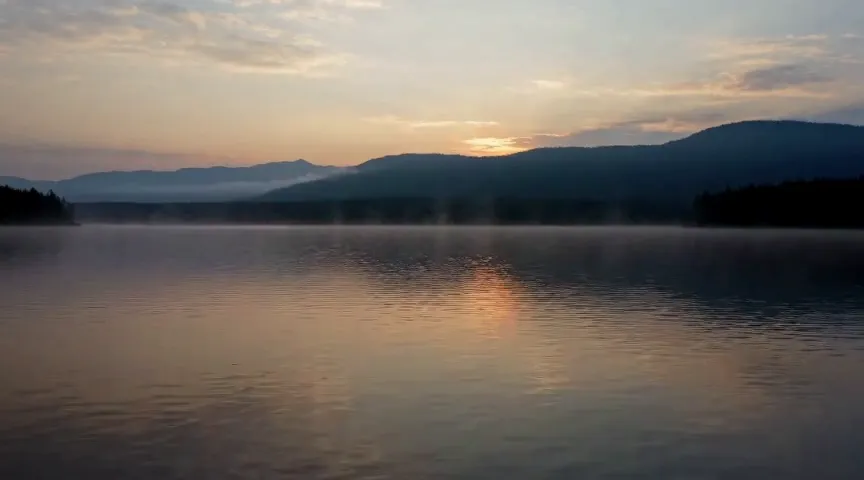
A slow establishing shot with mist, water and soft sunrise light. Use it as a starting point for atmosphere or storyboards.
864 × 480 px · 5s
A single wide cinematic shot of a quiet mountain lake at sunrise. Thin mist drifts above still water, soft ripples catch golden light. Very slow camera push forward, restrained natural movement, peaceful mood. No people, no words, no cuts.
Step 01
Start with a written scene, one image or up to nine image references.
Step 02
Choose portrait or landscape and a short duration; 1080p supports up to 10 seconds.
Step 03
Watch the whole clip and check pacing, movement and details before downloading.
Keep a clear subject and a single goal. The example prompt is a starting point you can edit.
Subject + purpose + composition + light or motion + what to preserve
Open the creation workspaceKeep one main action; split a long story into separate shots.
Specify camera motion separately from the subject’s movement.
For several references, explain which establishes the person, outfit, object or setting.
Set the ratio and available output options in the workspace. Inspect the actual result before export. Choose only ratios supported by the selected model. A new ratio can reframe or regenerate the image.
| Format | Suitable use | Practical advice |
|---|---|---|
| 9:16 | Portraits, vertical posters and mobile feeds | Plan headroom and text placement; avoid cutting important details. |
| 16:9 | Website covers, concept art and widescreen video | Reserve side space and keep the focal subject readable at small sizes. |
Build the next part of your project using the matching workflow.
Turn a product photo, portrait or concept image into a short clip. Direct restrained subject motion and camera movement for product showcases and social drafts.
Upload two keyframes and describe the change between them. Test product scene transitions, storyboard connections and motion between two visual states.
Start from a preset to make a playful transformation or a two-image transition. See a real output, then open the matching effect page with your own materials.
Make event posters, social covers, editorial illustrations and cinematic concepts from a written brief. Explore actual outputs and reuse a prompt to start.
Yes. Describe a character, scene and style to begin. With an existing image, choose an image-input model to edit it or create a clip.
Yes. The total appears beside Generate after you choose a model and settings. Credits charged for failed generations are returned.
Start with realistic portraits, anime characters, fashion styling and cinematic scenes. For NSFW themes, choose ideas that fit your selected model's content rules.
You can open the workspace in a mobile browser. Prepare the original image first and review the result at its full size before publishing.
After a successful generation, open the result or creation history to save it. Inspect the original file and add exact text or finishing edits where needed.
Choose a character, a mood and an action, then create your clip.
Generate a video