
Lifestyle product scenes
Put a product reference into a setting that suits the campaign.
Open the creation workspaceActual creation examples
Create lifestyle product images, white-background drafts and campaign visuals from one product reference. Explore actual outputs and adapt the scene to your brief.
Choose a model and settings before submitting; examples never auto-generate.
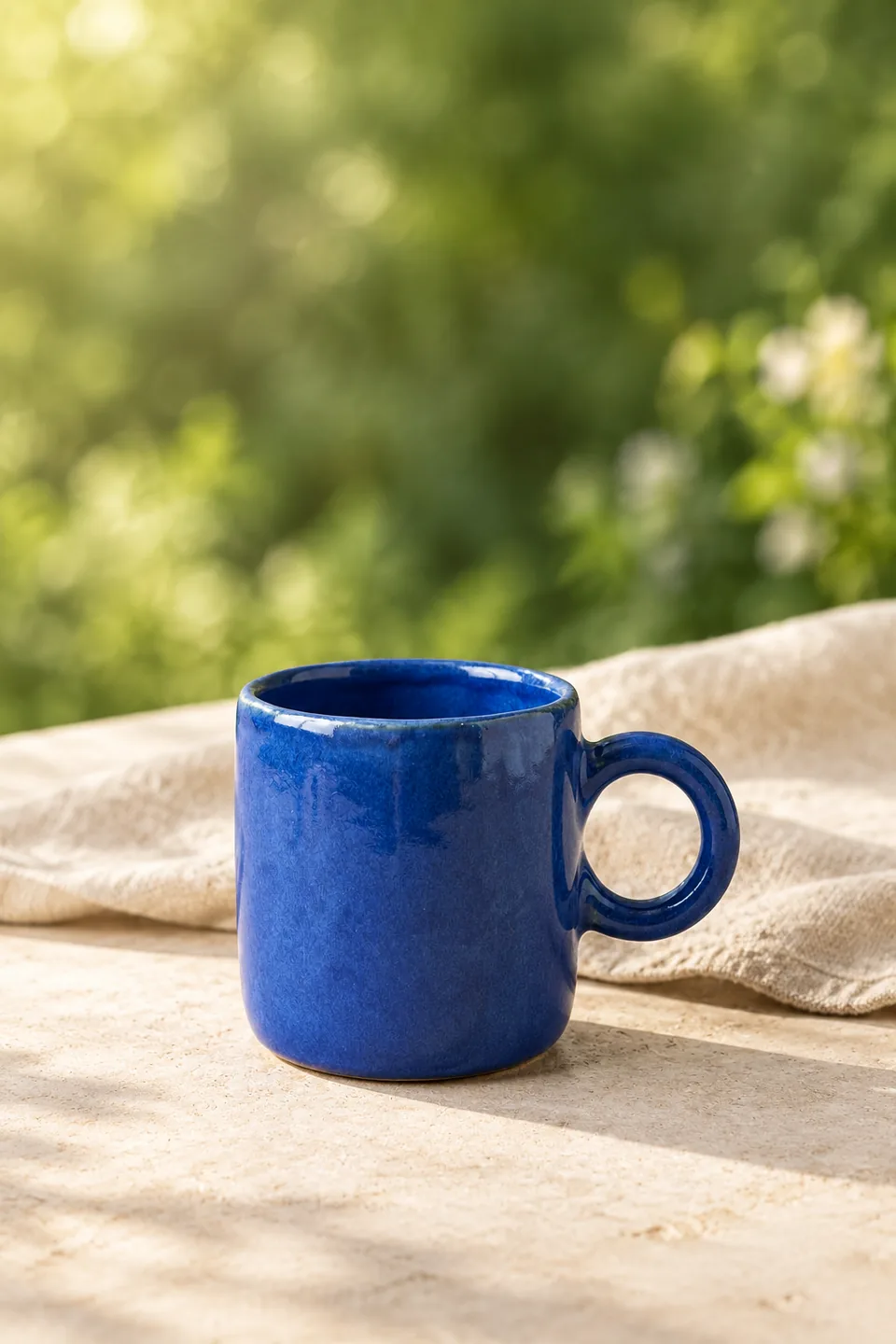
What would you like to create?
Find your starting point
Choose a useful direction, then adapt the example to your own brief.
Put a product reference into a setting that suits the campaign.
Open the creation workspaceExplore a clean listing visual before final platform checks.
Open the creation workspaceReserve space for copy beside the product, then add final text separately.
Open the creation workspaceThese examples were generated through this site’s models or effects. Reference people and products are AI-created. Each is one result, not a fixed-output promise; prompts show the exact original wording. A button restores settings for review and never submits or spends credits automatically.
Actual creation examples
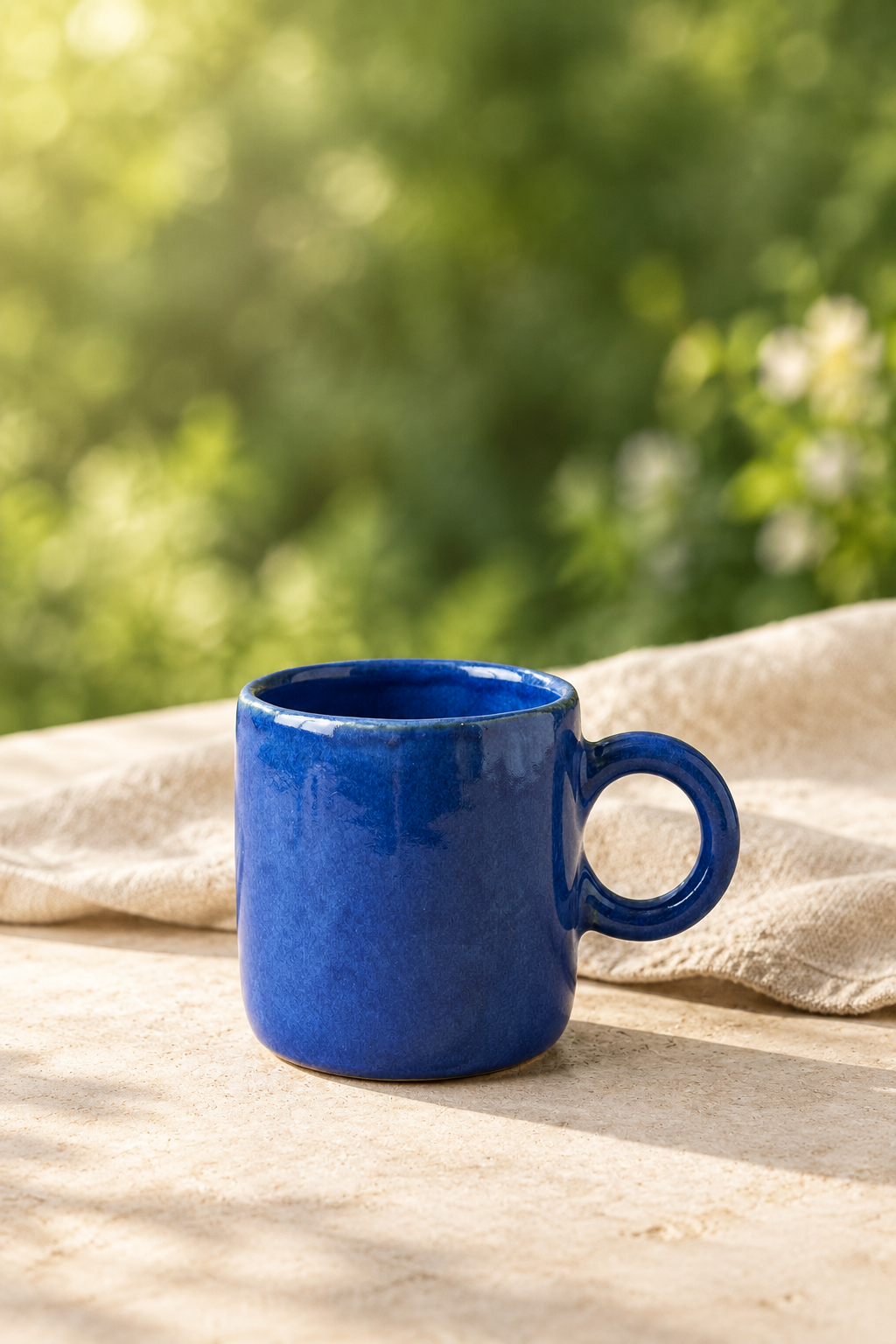
Move the reference mug onto a stone table with linen and a garden mood, leaving headline space above. Useful for product campaign and brand-direction drafts.
1024 × 1536 px
Use the reference mug. Preserve its cobalt-blue color, handmade rim and loop handle. Create an editorial product photo with this single mug on a pale stone table, a linen cloth behind it and softly blurred green garden in the background. Warm morning side light, realistic ceramic glaze, ample clean space above the mug for copy added later. No text or logos.
Actual creation examples
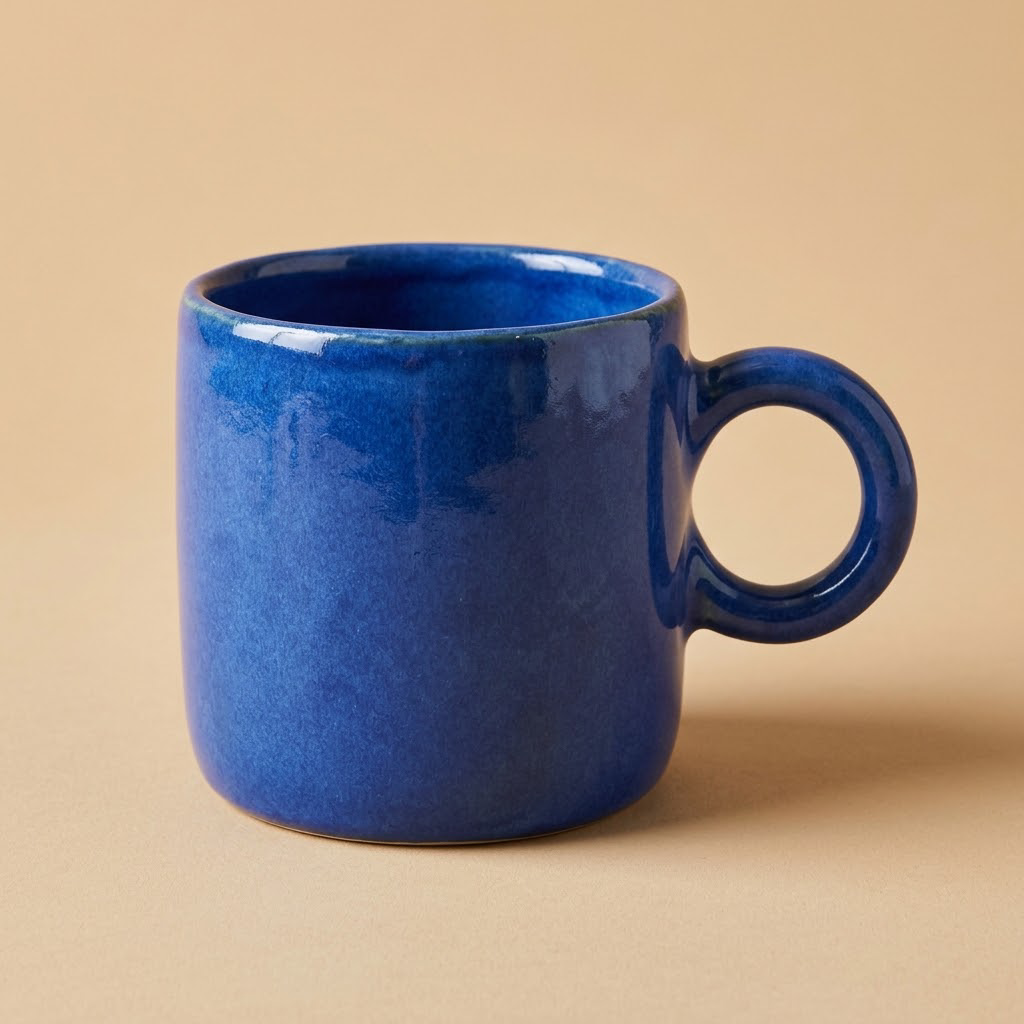
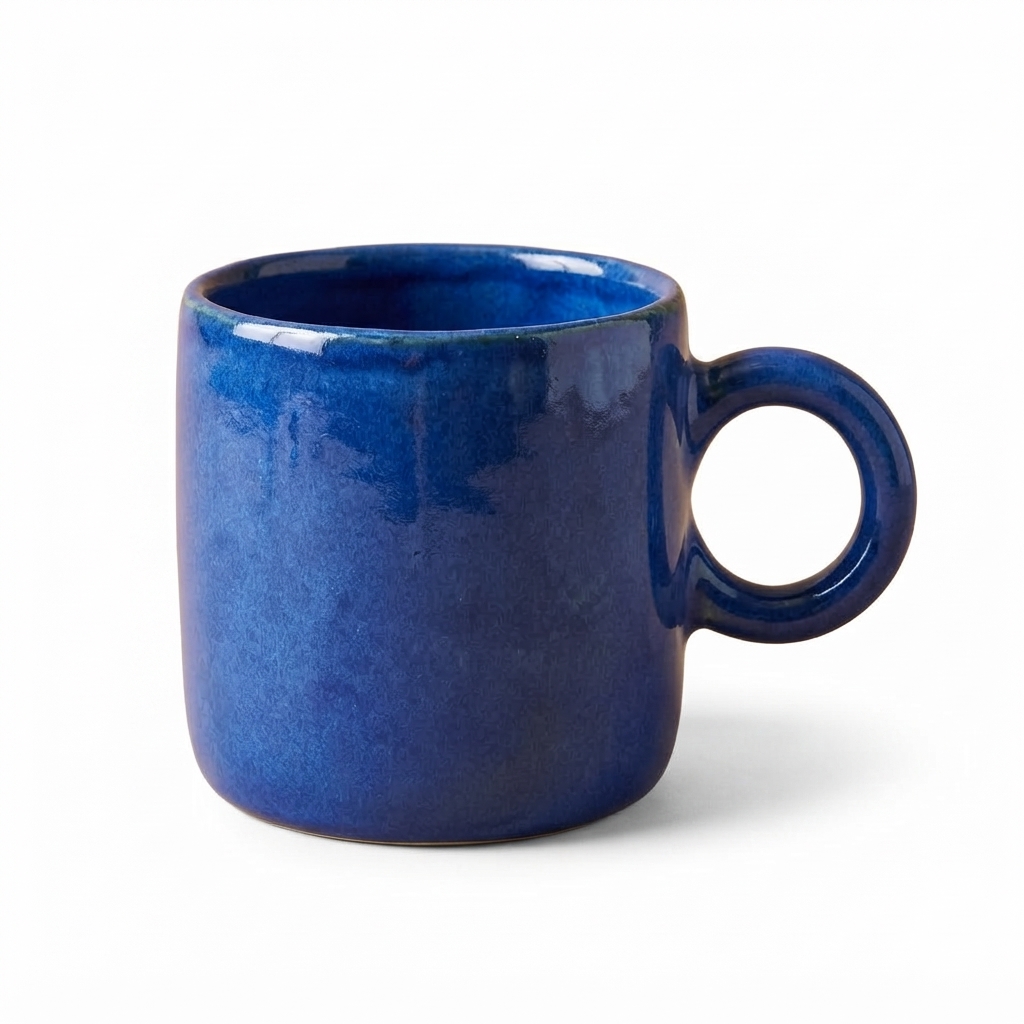
Change the same blue mug from beige to white for a catalog or listing draft. Compare the rim, handle and glaze, particularly at the edges.
1024 × 1024 px
Remove the beige background only. Keep this blue ceramic mug unchanged, with the same shape, glaze, handle and camera angle. Place it on a plain pure white background.
Actual creation examples
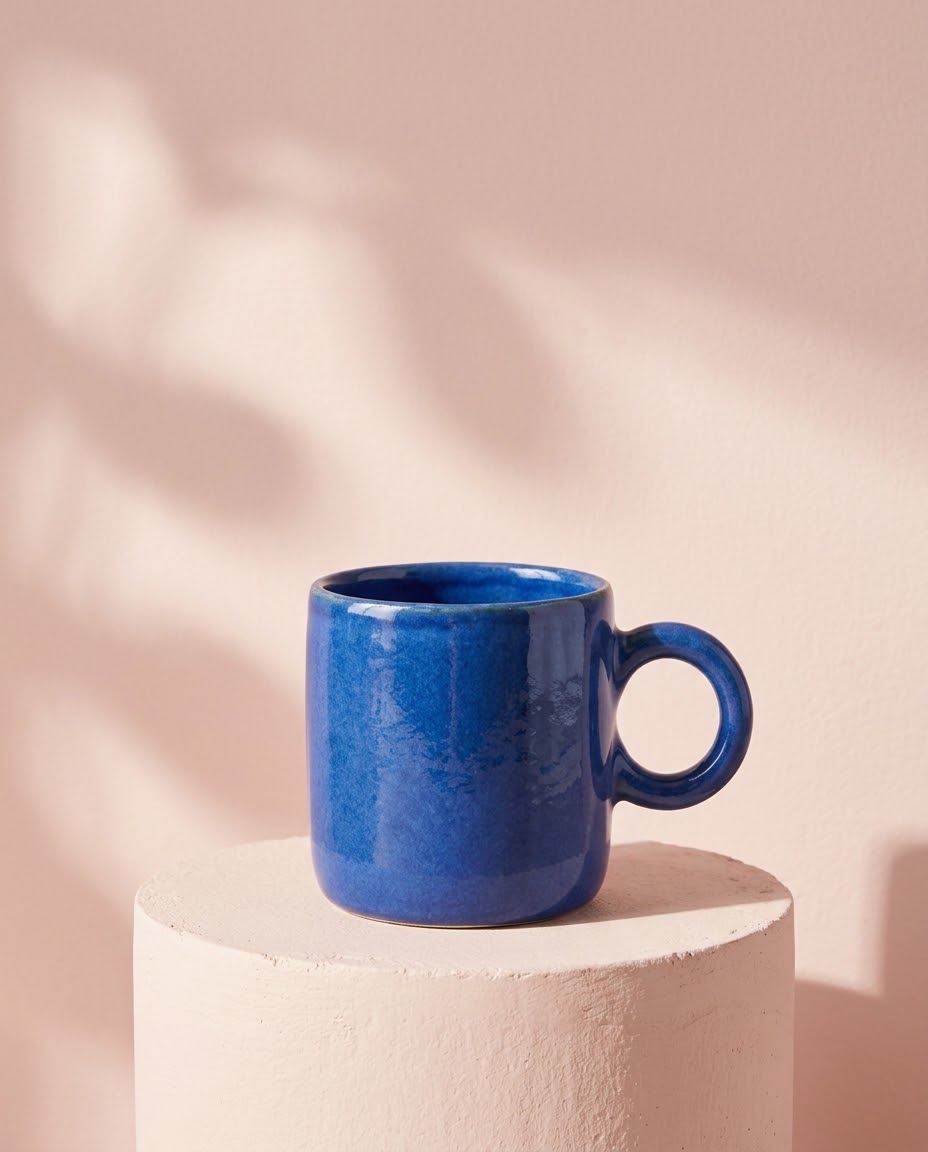
Start from the same blue ceramic mug and request a pink pedestal, soft side lighting and empty space above the product for a fresh advertising scene.
928 × 1152 px
Use the reference product photo. Keep the same cobalt blue ceramic mug, its cylindrical body, handmade rim, thick round handle on the right, glaze color and camera angle. Change the setting into a polished editorial product campaign: a pale blush-pink plaster pedestal in front of a soft pink background, warm side lighting, a realistic soft cast shadow, a few restrained abstract soft-light shapes on the BACKGROUND only. Keep the mug fully visible, centered low in the composition with clean empty space above it. No added words, no logo, no extra mug, no changes to the mug's design. Photorealistic advertising photograph, portrait 4:5.
Step 01
Upload a clear product photo with visible shape, color and important details.
Step 02
Describe the surface, setting, lighting and space needed for campaign copy.
Step 03
Check the product against the original and finish exact labels before publishing.
Keep a clear subject and a single goal. The example prompt is a starting point you can edit.
Subject + purpose + composition + light or motion + what to preserve
Open the creation workspaceKeep one product as the focal point instead of crowding the scene.
Name the material, camera angle and direction of light.
For a real listing, check platform requirements and never invent product features.
Set the ratio and available output options in the workspace. Inspect the actual result before export. Choose only ratios supported by the selected model. A new ratio can reframe or regenerate the image.
| Format | Suitable use | Practical advice |
|---|---|---|
| Square · 1:1 | Product posts and compact social layouts | Keep the main subject central and leave a comfortable margin. |
| Portrait · 2:3 / 3:4 / 9:16 | Portraits, vertical posters and mobile feeds | Plan headroom and text placement; avoid cutting important details. |
| Landscape · 3:2 / 16:9 | Website covers, concept art and widescreen video | Reserve side space and keep the focal subject readable at small sizes. |
Build the next part of your project using the matching workflow.
Clear a distracting background for a white-background product visual or a simple portrait asset. Inspect a real reference and result before uploading your own photo.
Upload a product photo or portrait and explore new backgrounds, outfits and lighting. Compare the reference with actual edits, then apply the same approach to your own image.
Turn a product photo, portrait or concept image into a short clip. Direct restrained subject motion and camera movement for product showcases and social drafts.
Make event posters, social covers, editorial illustrations and cinematic concepts from a written brief. Explore actual outputs and reuse a prompt to start.
Compare shape, material, color and labels with the original. AI can redraw important details, so finish exact branding and verify marketplace image requirements before publishing.
Cost depends on the model and output settings and is shown before submission. Check a direction at a smaller setting first; higher resolution is not a quality guarantee.
Yes. The button restores the actual model, prompt and reusable reference. Replace it with your own material if you prefer; your generated result can differ from the example.
Yes. Replace the reference in the workspace before submitting. Use an image you can use for the project; one image is supported by the current image-editing workflow.
You can open the workspace in a mobile browser. Prepare the original image first and review the result at its full size before publishing.
After a successful generation, open the result or creation history to save it. Inspect the original file and add exact text or finishing edits where needed.
Choose a model and settings before submitting; examples never auto-generate.
Start creatingMake event posters, social covers, editorial illustrations and cinematic concepts from a written brief.
Learn moreUpload a product photo or portrait and explore new backgrounds, outfits and lighting.
Learn moreCreate adult fictional portraits and explore everyday scenes from text or one portrait reference.
Learn more
