Character portraits
Describe an adult fictional character and a clear visual style.
Open the creation workspaceActual creation examples
Describe your character or upload a reference to create realistic portraits, anime characters and fashion looks. Explore lighting, outfits and settings with GPT Image and Nano Banana.
Choose a model and settings before submitting; examples never auto-generate.
What would you like to create?
Find your starting point
Choose a useful direction, then adapt the example to your own brief.
Describe an adult fictional character and a clear visual style.
Open the creation workspaceUse one portrait reference to explore a new location or activity.
Open the creation workspaceDevelop character atmosphere and composition before final illustration.
Open the creation workspaceThese examples were generated through this site’s models or effects. Reference people and products are AI-created. Each is one result, not a fixed-output promise; prompts show the exact original wording. A button restores settings for review and never submits or spends credits automatically.
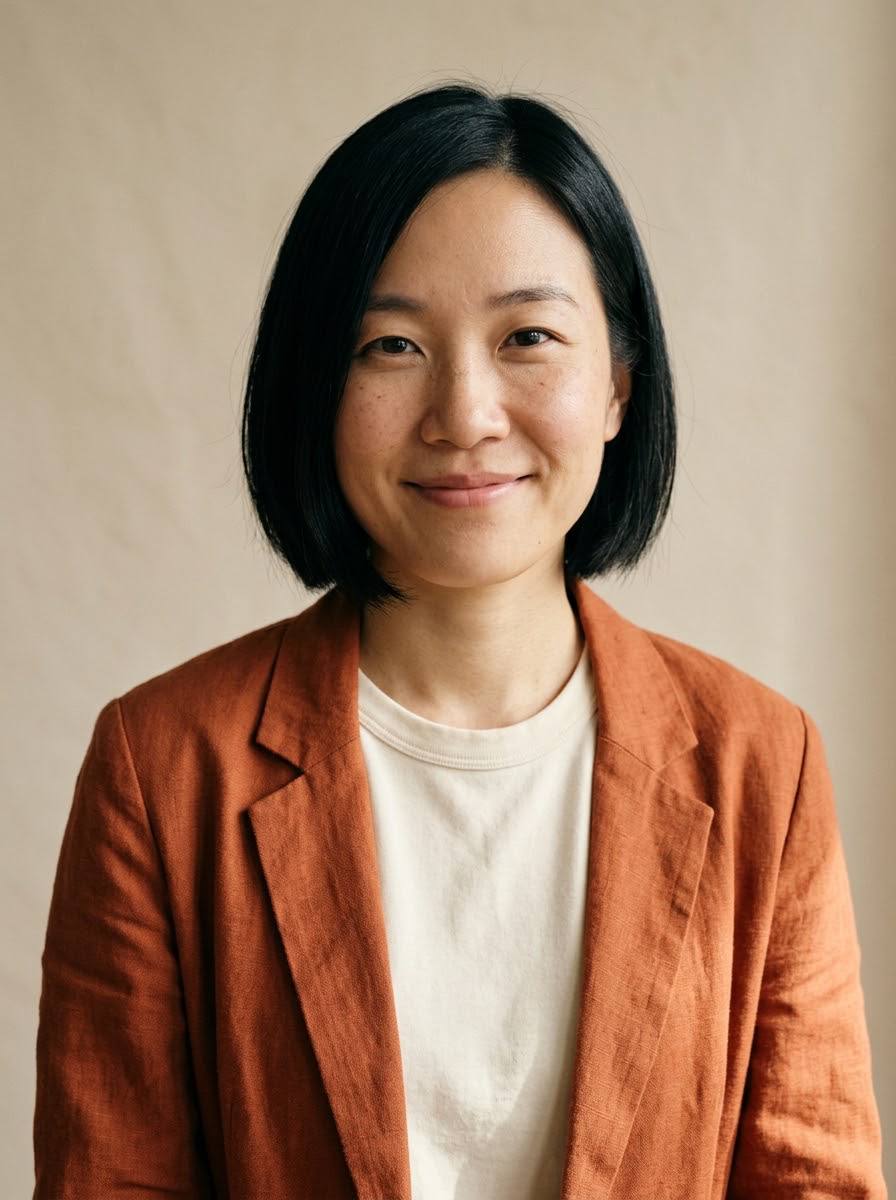
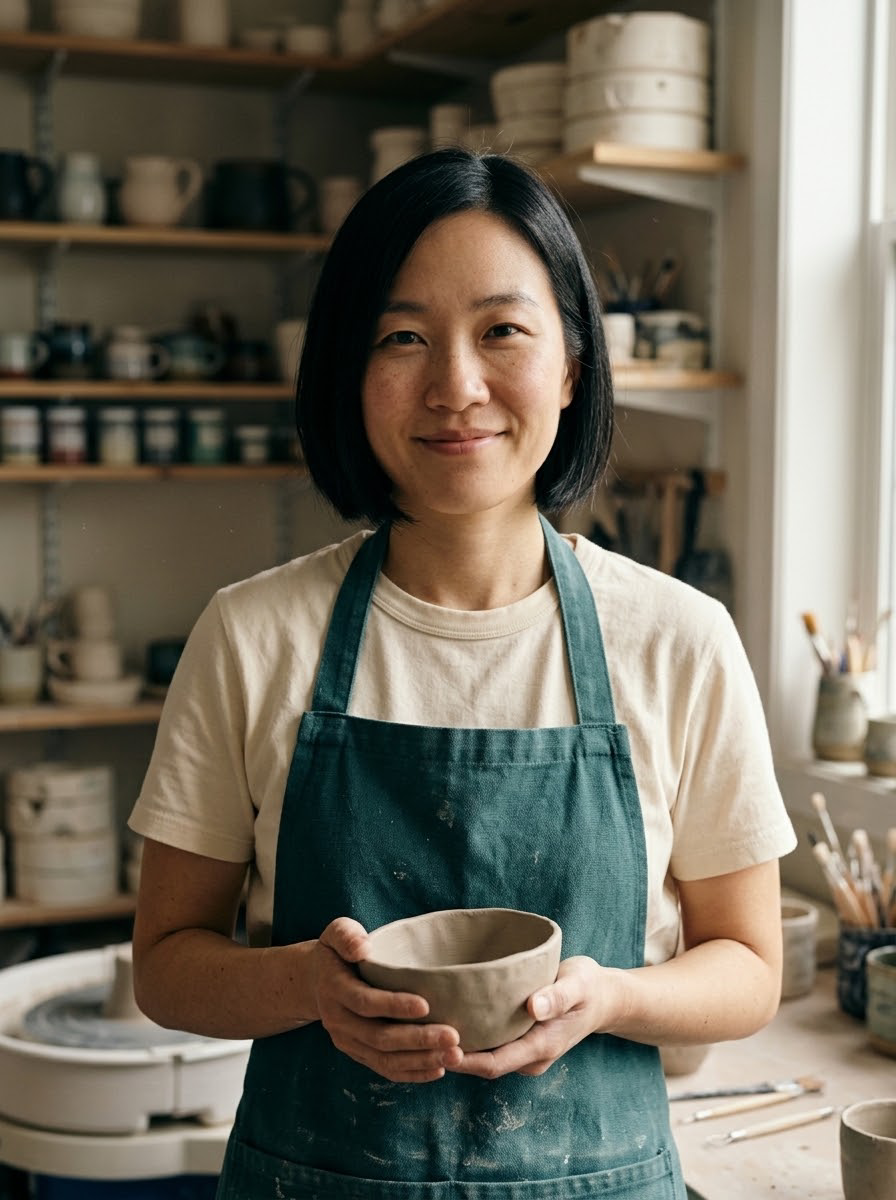
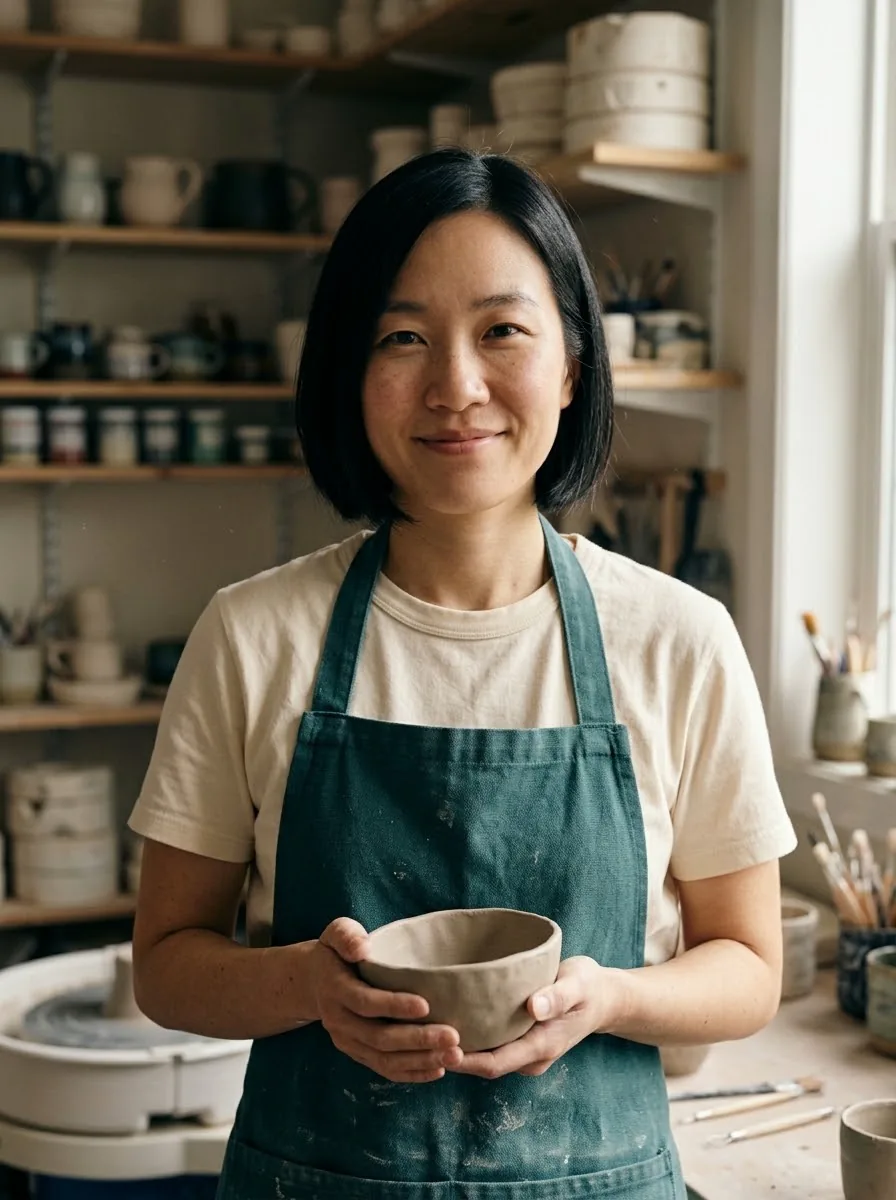
Actual creation examples
Use the same fictional portrait while changing clothing, setting and props. Useful for character lifestyle scenes and editorial concepts; inspect face and hand details.
896 × 1200 px
Keep the same fictional adult woman in the reference: short black bob, subtle freckles, warm smile. Change the scene to a small ceramic workshop. She wears a simple dark teal apron over her cream shirt, holding a small clay bowl, soft window light, blurred shelves of pottery in the background. Chest-up natural editorial portrait, realistic skin and fabric, no text or logos.
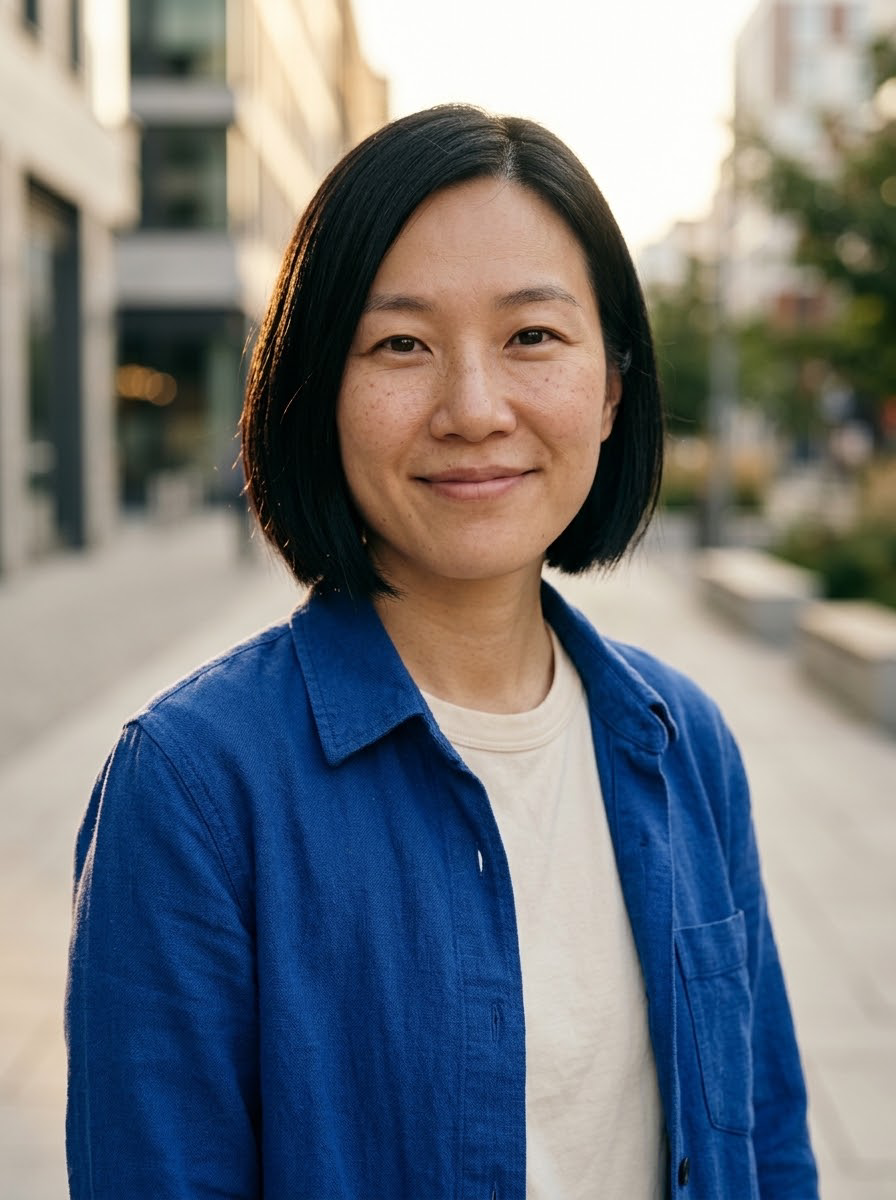
Actual creation examples
Use the same fictional portrait to explore a sunset city scene and a deep-teal studio setting. Change clothing and light while asking to retain the main face and hairstyle features.
896 × 1200 px
Use the uploaded portrait as the identity reference. Keep the same adult woman's facial features, short black bob hairstyle, side part, brown eyes, freckles and natural smile. Put her outdoors on a quiet modern city street at golden hour, wearing a cobalt-blue overshirt over a cream shirt instead of the orange jacket. Chest-up editorial portrait, natural candid pose, softly blurred architectural background, realistic warm rim light and skin texture. One person only. No words, no brand logos, no smoothing or exaggerated beauty retouching. Portrait 3:4.
Step 01
Write the character’s distinctive appearance, clothing and setting.
Step 02
Use one portrait as a reference if you want a starting point for continuity.
Step 03
Compare faces, hands and clothing across versions before choosing one.
Keep a clear subject and a single goal. The example prompt is a starting point you can edit.
Subject + purpose + composition + light or motion + what to preserve
Open the creation workspaceRepeat a few distinctive features rather than a long list of competing instructions.
Keep outfit or background changes small when checking face continuity.
Treat each scene as a new generated image and inspect identity rather than assuming it is fixed.
Set the ratio and available output options in the workspace. Inspect the actual result before export. Choose only ratios supported by the selected model. A new ratio can reframe or regenerate the image.
| Format | Suitable use | Practical advice |
|---|---|---|
| Square · 1:1 | Product posts and compact social layouts | Keep the main subject central and leave a comfortable margin. |
| Portrait · 2:3 / 3:4 / 9:16 | Portraits, vertical posters and mobile feeds | Plan headroom and text placement; avoid cutting important details. |
| Landscape · 3:2 / 16:9 | Website covers, concept art and widescreen video | Reserve side space and keep the focal subject readable at small sizes. |
Build the next part of your project using the matching workflow.
Upload a product photo or portrait and explore new backgrounds, outfits and lighting. Compare the reference with actual edits, then apply the same approach to your own image.
Explore detail, noise and exposure adjustments for portraits and product visuals. Compare the source and result, keep natural texture and decide whether the edit is useful.
Turn a product photo, portrait or concept image into a short clip. Direct restrained subject motion and camera movement for product showcases and social drafts.
Make event posters, social covers, editorial illustrations and cinematic concepts from a written brief. Explore actual outputs and reuse a prompt to start.
Yes. Describe a character, scene and style to begin. With an existing image, choose an image-input model to edit it or create a clip.
Yes. The total appears beside Generate after you choose a model and settings. Credits charged for failed generations are returned.
Start with realistic portraits, anime characters, fashion styling and cinematic scenes. For NSFW themes, choose ideas that fit your selected model's content rules.
Yes. Replace the reference in the workspace before submitting. Use an image you can use for the project; one image is supported by the current image-editing workflow.
You can open the workspace in a mobile browser. Prepare the original image first and review the result at its full size before publishing.
After a successful generation, open the result or creation history to save it. Inspect the original file and add exact text or finishing edits where needed.
Start with a prompt or reference and explore your own character and style.
Generate an image
